
The top of the first page is the part of the minutes people notice: the town's logo, the name of the body, the words Regular Meeting Minutes and the date. Until now it came from the example minutes you uploaded. That works well when the example is a clean Word file. It doesn't when the example is a scanned PDF, or a body hasn't sent you an example yet. How the minutes open lets you set it yourself, once, for every meeting.
Where to find it
It's in Settings → Bodies, near the bottom of each tab.
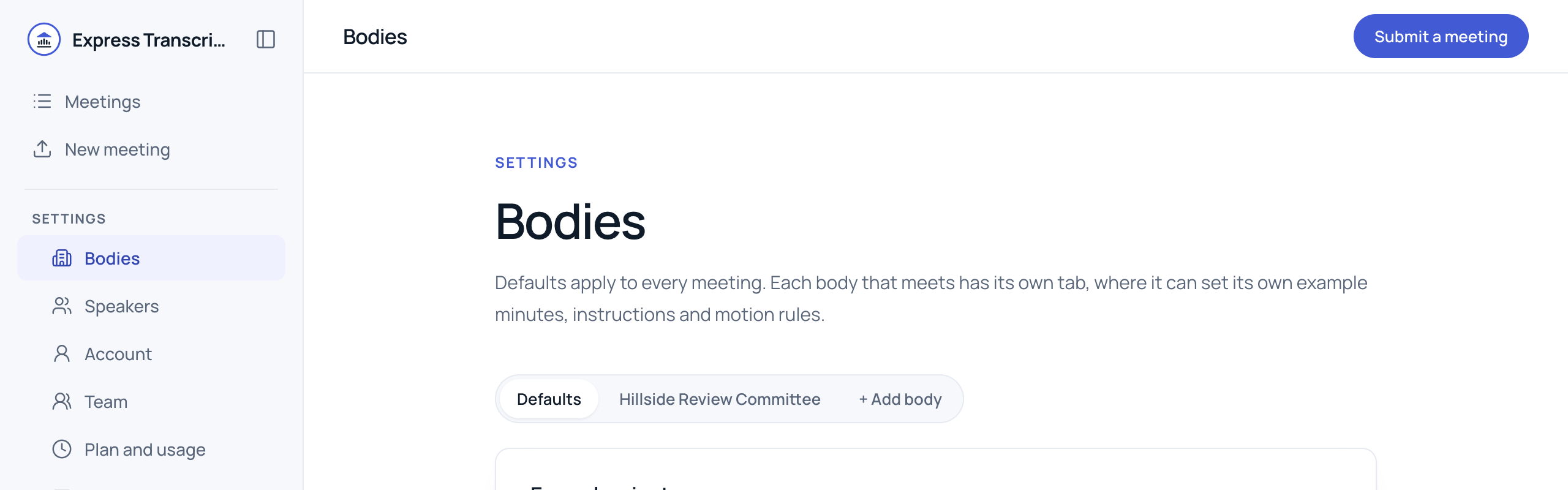
- Defaults sets it for every body.
- A body's tab sets it for that body only. Anything the body leaves alone follows Defaults, so you can share one logo across every body and give each its own title.
The four parts
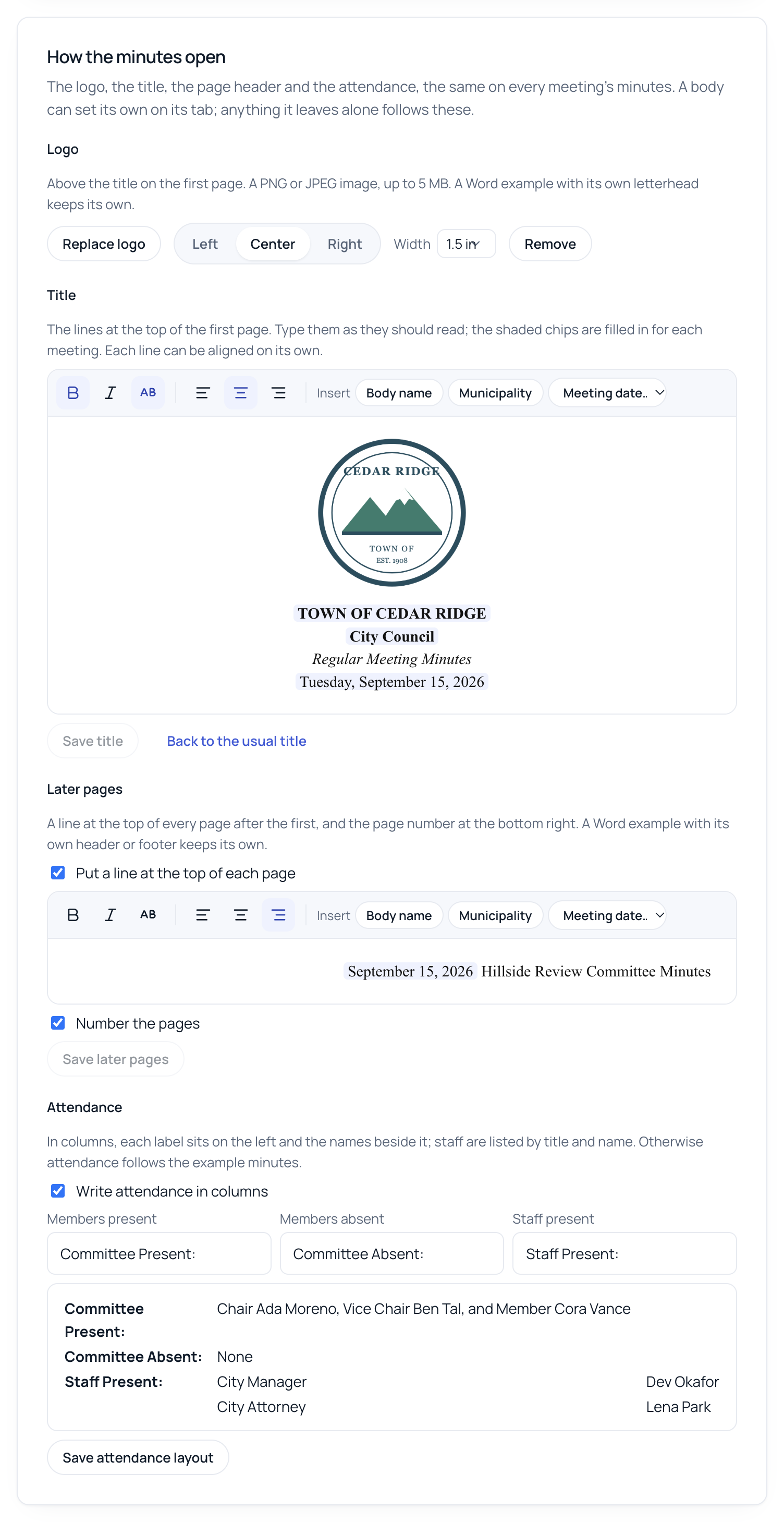
All names and the logo above are made up for this post.
Logo. Click Add a logo and choose a PNG or JPEG. It sits above the title on the first page, on the left, in the center or on the right, at 1, 1.5 or 2.25 inches wide.
Title. These are the lines at the top of the first page. Type them the way they should read, in an editor that looks like the page. Each line can be aligned on its own, words can be bold or italic, and a line can be set in capitals. Use Insert to add the body's name, the municipality or the meeting date. They show up as shaded chips and are filled in for each meeting. You choose how the date reads, from Wednesday, June 10, 2026 to 06/10/2026. If you type or paste a date, it becomes a date chip in the same format, so every meeting gets its own date instead of the one you typed. Back to the usual title undoes all of it.
Later pages. This is a line at the top of every page after the first, such as the date followed by Hillside Review Committee Minutes, built in the same editor. You can also number the pages, bottom right.
Attendance. Tick Write attendance in columns to put each label on the left and the names beside it. Use your own labels, such as Committee Present:, Committee Absent: and Staff Present:. Staff are listed by title and name, and if nobody is absent the line reads None. The preview below the labels shows the layout.
Each part saves on its own, so changing the title doesn't touch the logo or the attendance.
When your example minutes already has a letterhead
If a body's example is a Word file with its own letterhead or page header, you get one more choice above the settings: Which top of the page to use. It shows the example's letterhead lines, so you can see what you'd be keeping.
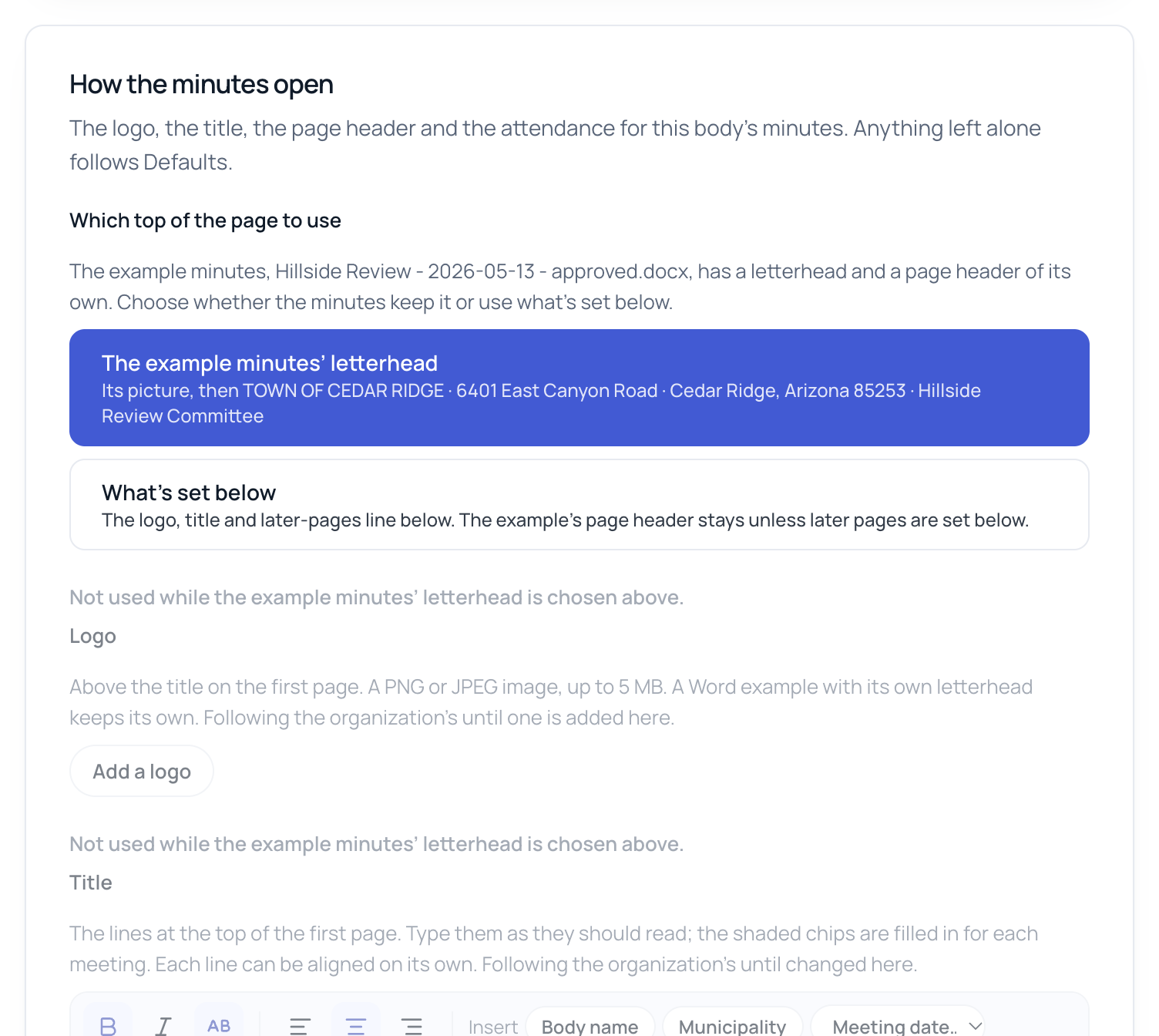
- The example minutes' letterhead (the default) keeps the example's letterhead and page header. The logo, title and later-pages settings are greyed out, because they aren't used.
- What's set below uses your logo, title and later-pages line instead. The rest of the example (fonts, spacing, headings) is used either way.
In the meeting
Open a meeting's Document tab and the page opens the way you set it, with the page header for later pages shown above the first page.
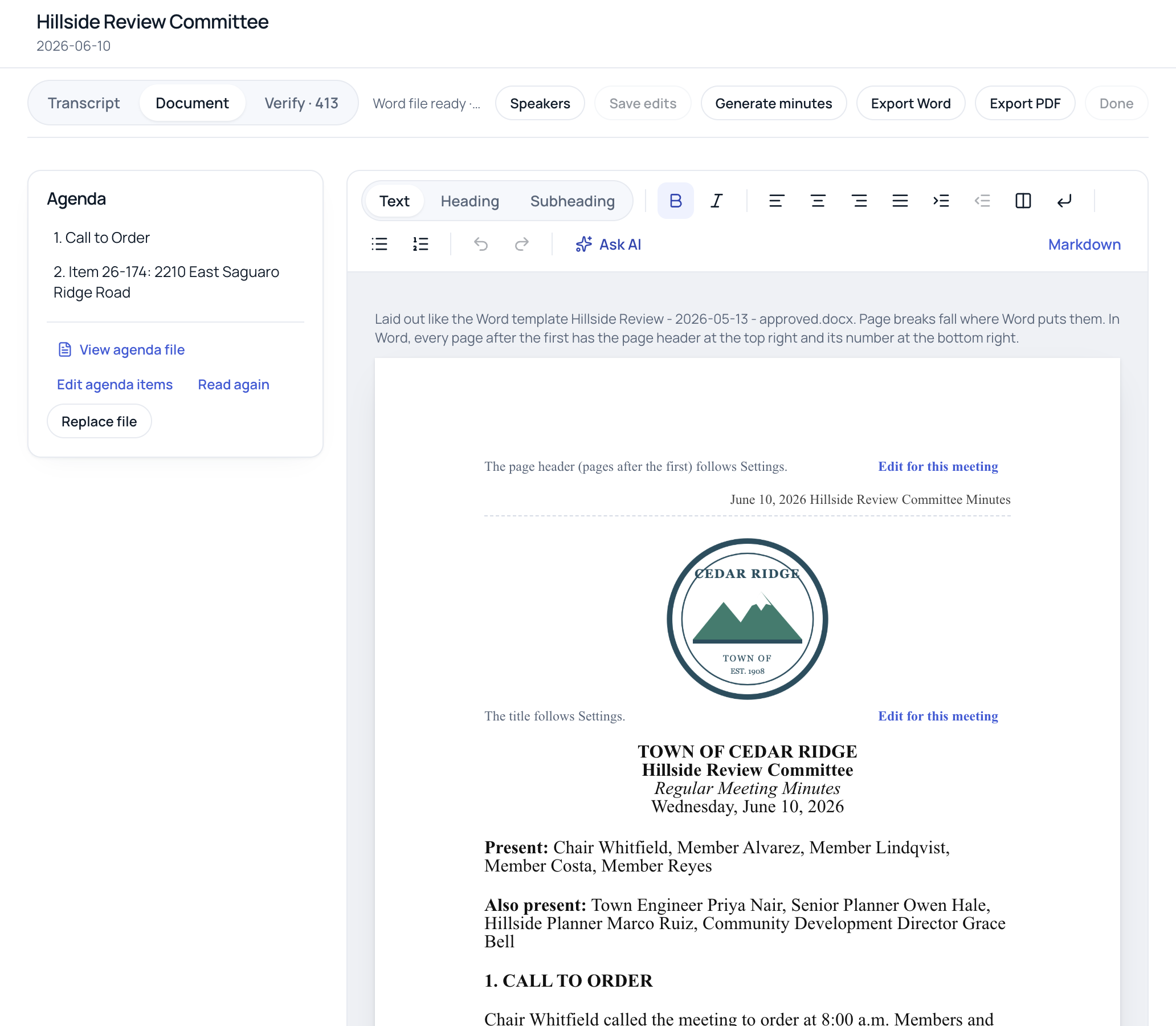
Each of them says where it comes from, such as The title follows Settings. To change one meeting only, for example to call it a Special Meeting, click Edit for this meeting. That puts the title into the draft, where you edit it like any other text. That meeting keeps your edit even if Settings change later. Use the title from Settings puts it back.
Which meetings it changes
- Logo, title, later pages and the letterhead choice aren't saved with a meeting. They're read each time the Document tab opens and each time you export, so they apply to every meeting, including ones drafted before you changed them. A meeting where you used Edit for this meeting keeps its own. Reload a meeting that's already open to see a change. Files you've already downloaded stay as they were.
- Attendance in columns is written into the draft, so it applies to drafts generated after the change, and to a meeting's attendance when it's saved again.
Set it up in five minutes
- Open Settings → Bodies and stay on Defaults.
- Under How the minutes open, add your logo and save the title lines your minutes always start with.
- If your bodies use different titles, open each body's tab and change only the title.
- Open any meeting's Document tab to see the result, then export to Word.
Your first meeting is free and doesn't need a card. Try it on your next meeting.